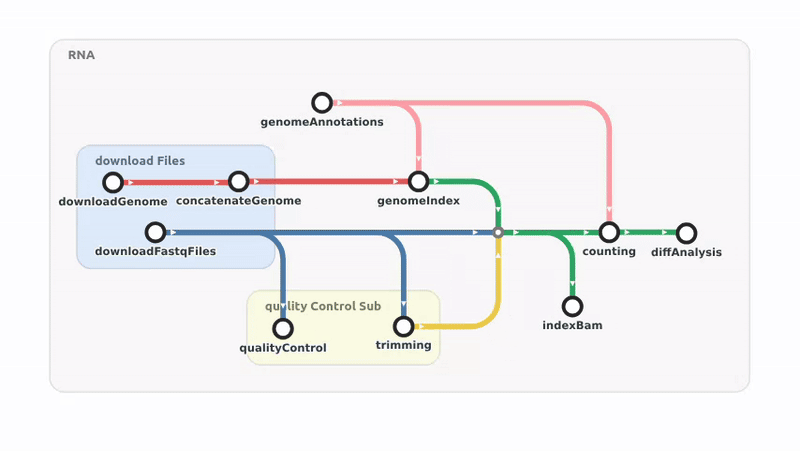
Generate interactive Metro-Maps from Nextflow code
Submit your workflow code via GitHub or upload an archive.
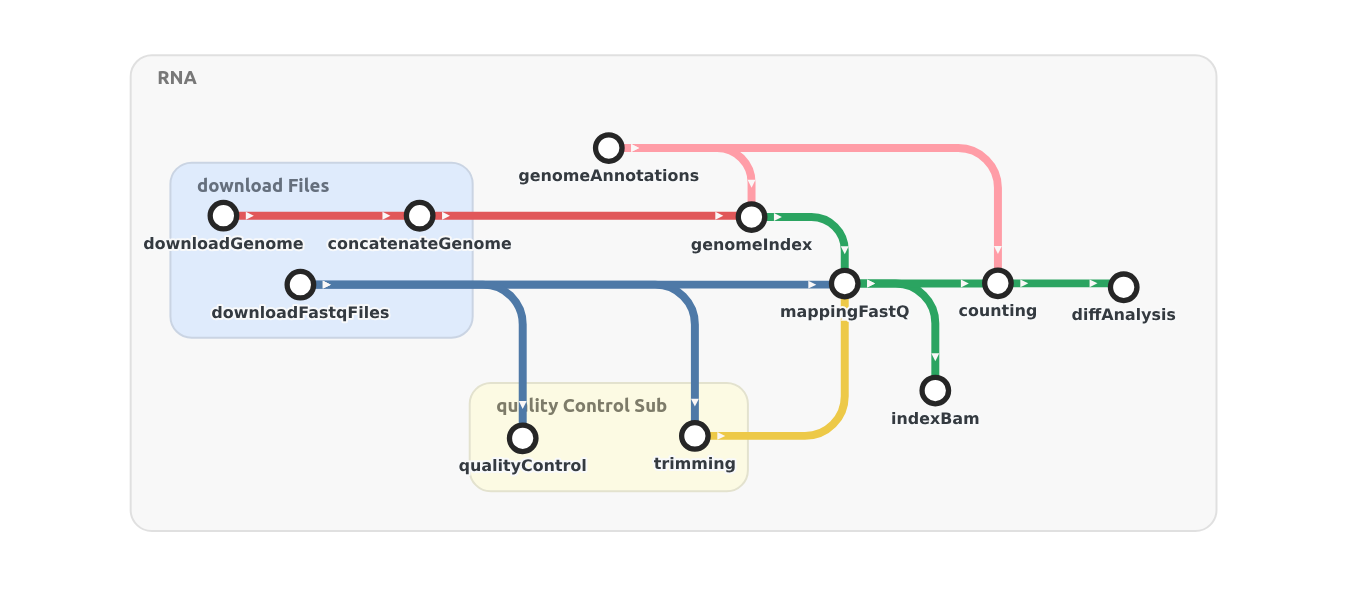
MetroFlow was created by George Marchment, Jaffar Gura, Bryan Brancotte, Frédéric Lemoine and Sarah Cohen-Boulakia.
MetroFlow functionnalities
Workflow Exploration
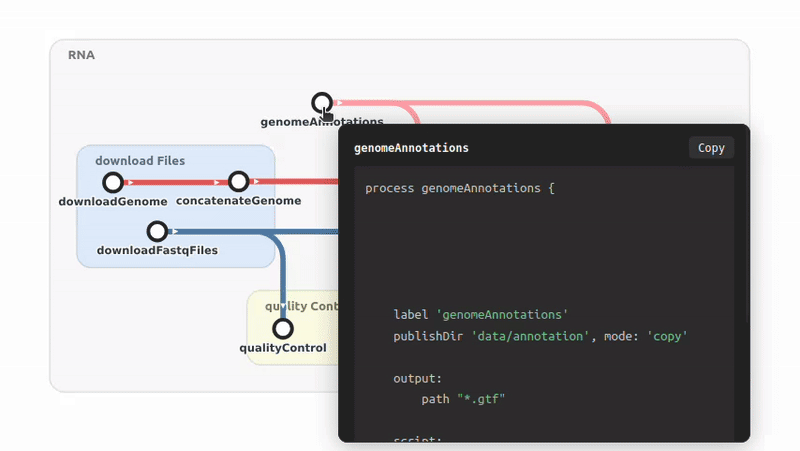
Visualising Process Code
Process code can be visualised by Right-Clicking on the process node. This functionnality allows to see all the process code without having to find it in the workflow code.
(Hover over image for demo)
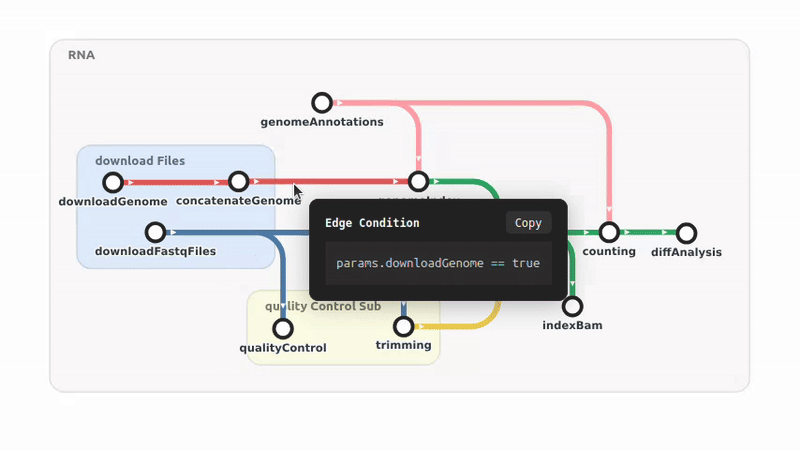
Visualising Conditions
Each coloured edge represents the condition needed to take that path. To visualise the condition Right-Click on the edge.
(Hover over image for demo)
Viewing Subworkflows in Isolation
To view a subworkflow in isolation of the rest of the workflow Hold F + Click on the Subworkflow Area, and simply press on Escape to return to the original view. This functionnality allows to easily explore even the most complete of workflows.
(Hover over image for demo)
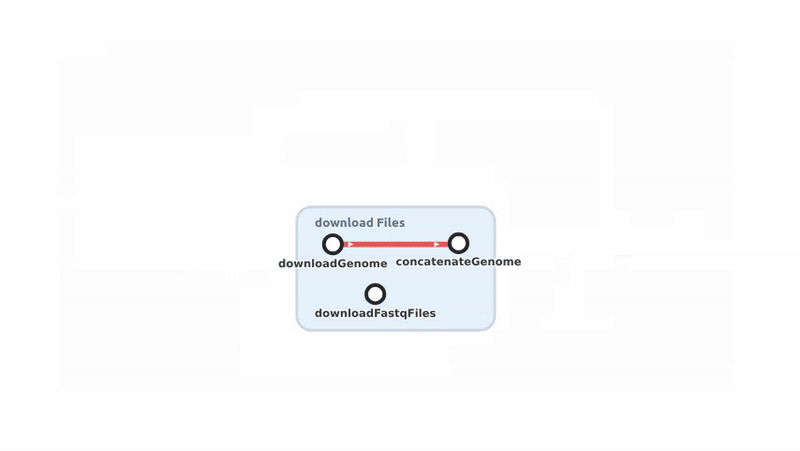
Workflow Interactivity
Collapsing Subworkflows
To collapse a subworkflow area simply Double click on the area and uncollapse it, do the same. This functionnality allows to simplify the view of the workflow and to hide some of its underlining complexity. Right-Click on a collapsed subworkflow to see its code, its condition of execution and the subworkflows and steps it contains.
(Hover over image for demo)
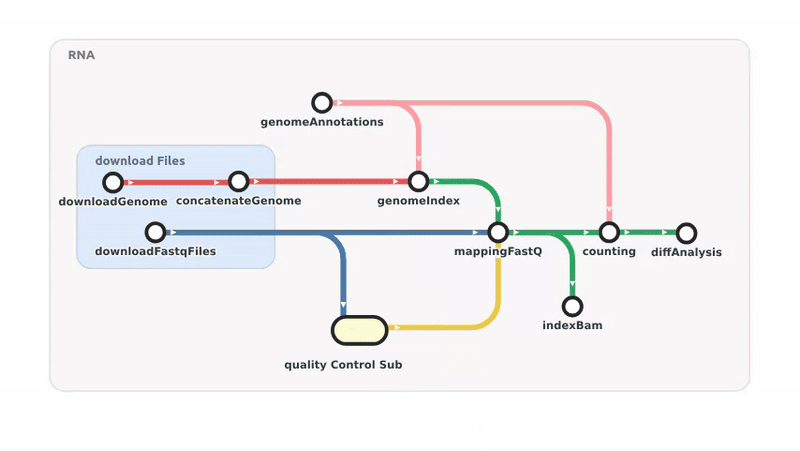
Rearranging Processes and Subworkflows
Processes and Subworkflows can be moved, to rearrange the view of the workflow. Simply Hold and Drag to move the different elements. To move multiple processes at once, selected multiple processes by Holding Shift.
(Hover over image for demo)
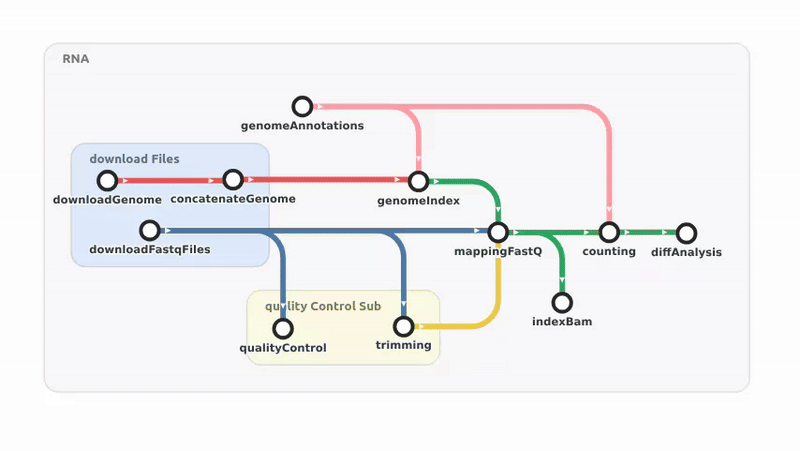
Hidding Processes
To hide a process and its adjacent edges Hold H + Click on the Process. To put it back simply do Ctrl + Z.
(Hover over image for demo)
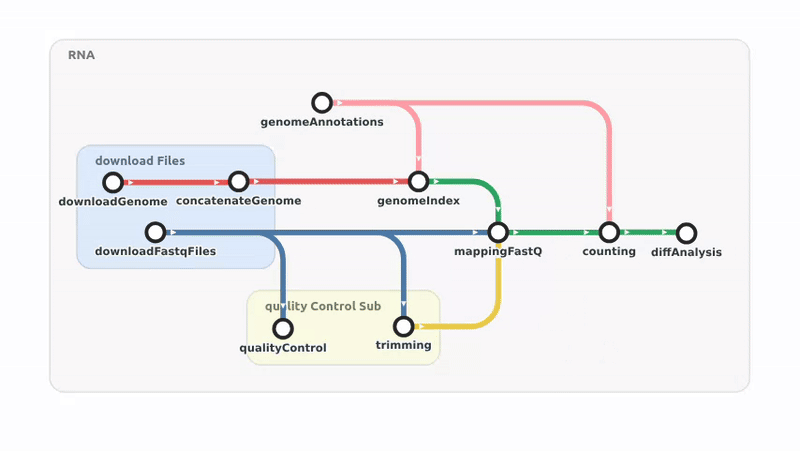
Minimising Processes
A process might want to be minimised instead of removing it, that is by making its representation smaller and removing its title. To do so Hold M + Click on the Process, to return it to its original view Hold H + Click on the Process.
(Hover over image for demo)